How to use your TopMiFi

Four steps from unboxing to online. No SIM card, no app, no setup call.

This guide covers the T8 handheld hotspot
  • No SIM card needed
  • No app to download
  • Online in about a minute
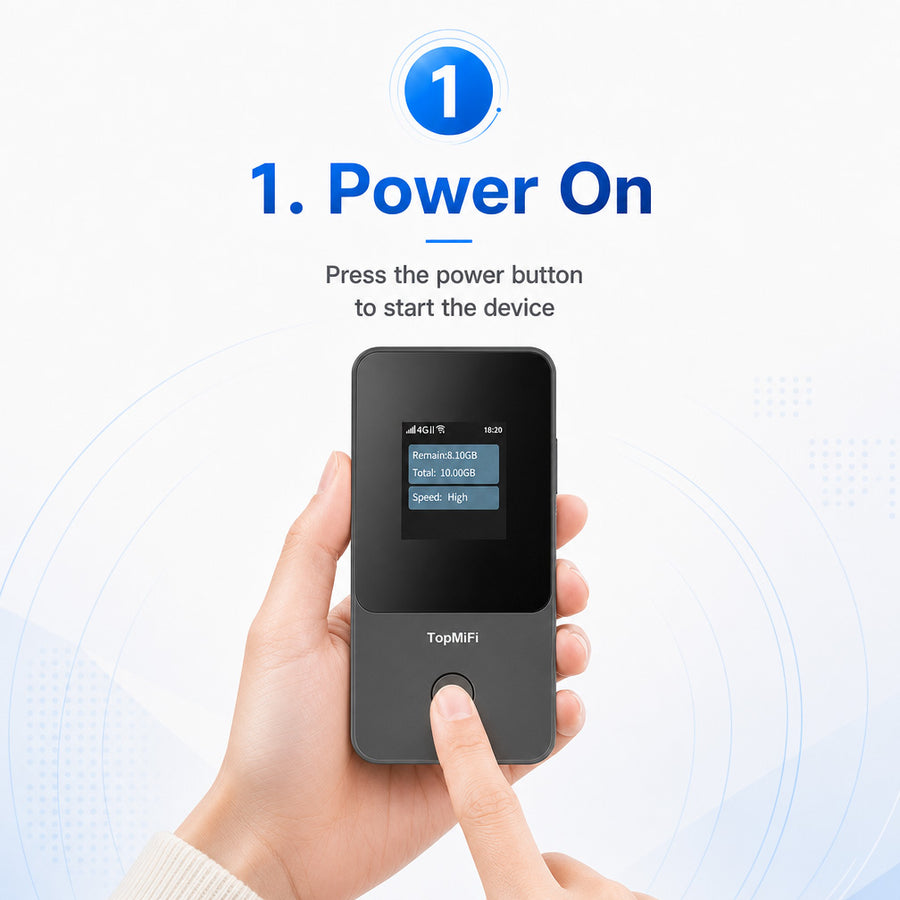
Power on

Power on

Press and hold the power button on the front of the device until the screen lights up. The screen shows your remaining data, total data and connection speed.

  • Hold the button for about 3 seconds
  • The 4G icon appears once it finds a network, usually within 30 seconds
  • Works anywhere with 4G LTE coverage, no SIM card to insert
TipCharge it fully before your first trip. The battery lasts a full day of use.
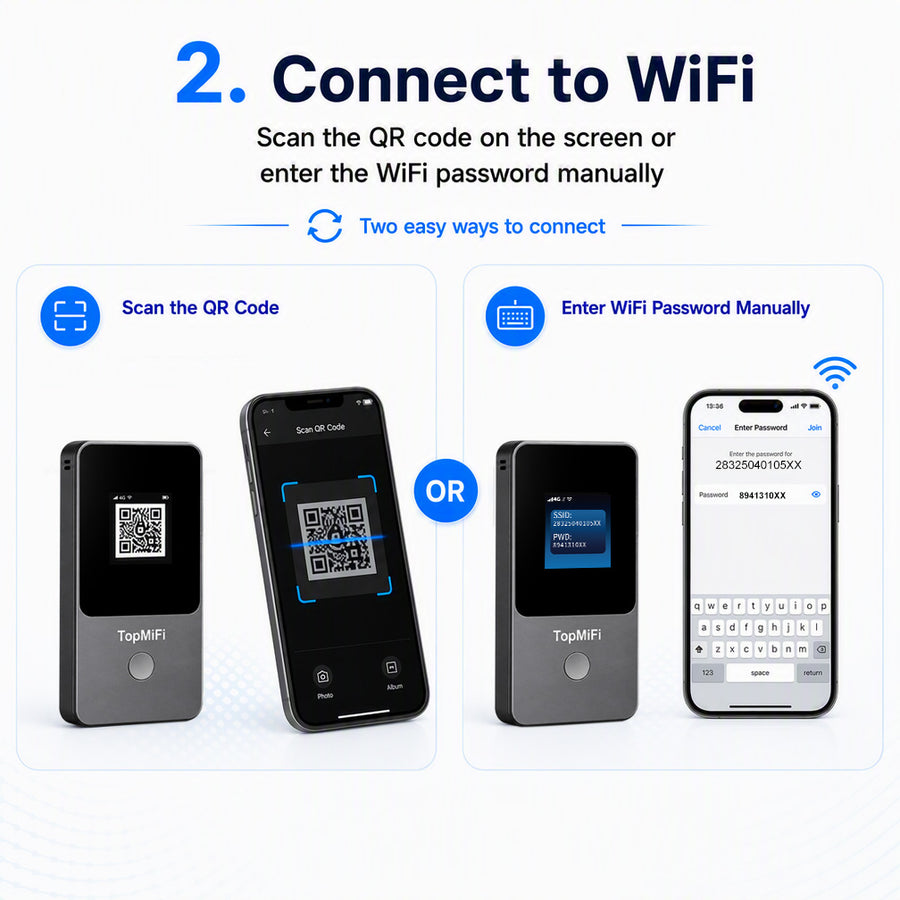
Connect to WiFi

Connect to WiFi

Two ways to join the network: scan the QR code on the screen with your phone camera, or pick the network name (SSID) in your WiFi settings and type the password shown on the screen.

  • QR code: open your camera, point it at the screen, tap the prompt
  • Manual: WiFi settings, choose the SSID on the screen, enter the password
  • Repeat on every phone, laptop or tablet you want online
TipScanning the QR code is the fastest way in. No typing, no typos.
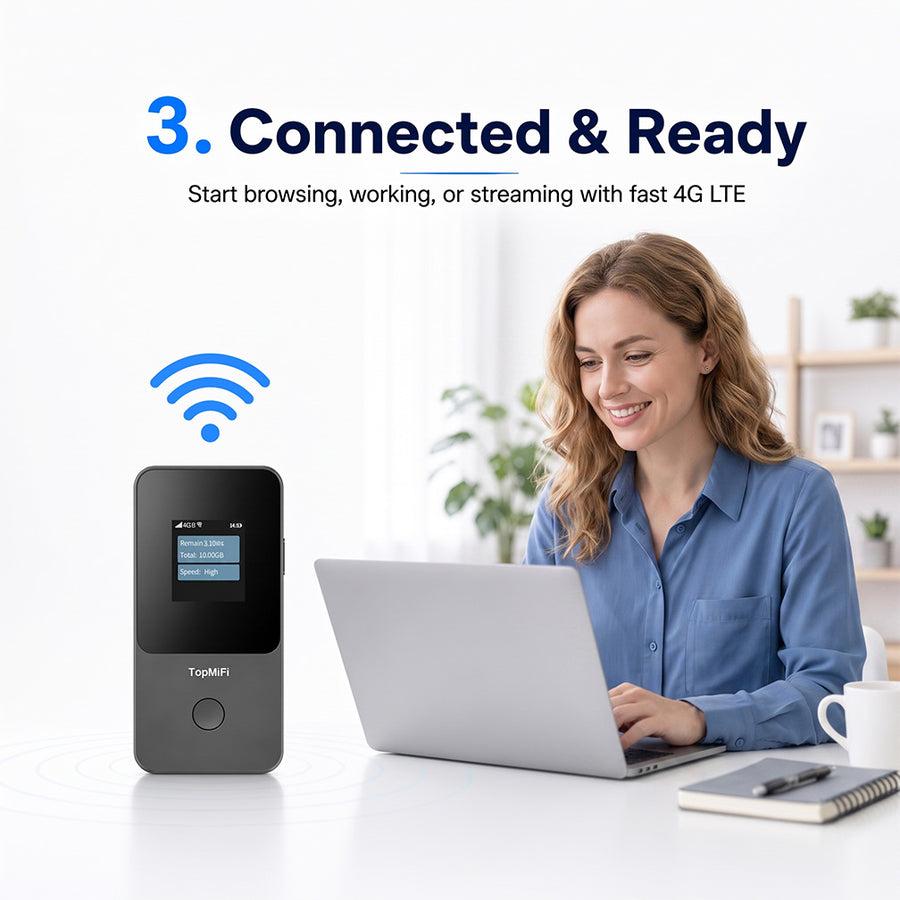
Connected and ready

Connected and ready

That is it. Start browsing, working or streaming over fast 4G LTE. Your devices reconnect automatically every time you power the hotspot on.

  • Share one connection with several devices at once
  • Your own password-protected network, safer than public WiFi
  • Check remaining data on the screen at any time
TipKeep the hotspot near a window or in your bag pocket for the strongest signal.
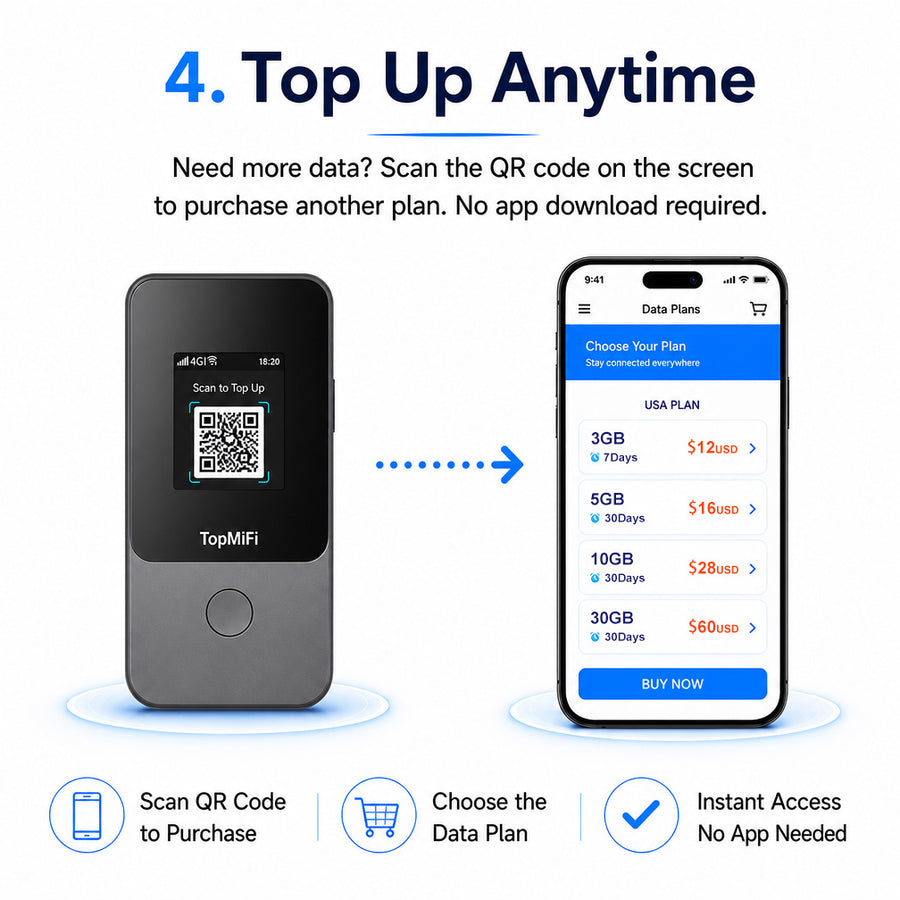
Top up anytime

Top up anytime

Need more data? Scan the top-up QR code on the screen to open the data plan page, choose a plan for your destination, and pay. Data is added to the device within minutes. No app download required.

  • Scan the QR code on the screen to open the plans page
  • Pick a plan by region and data size
  • Data activates on the device automatically after payment
TipBuy the plan for your next country before you land so you are online the moment you arrive.

Something not working?

Quick fixes for the most common questions we get.

The battery may be empty after shipping. Charge it for at least 15 minutes with the included USB-C cable, then press and hold the power button for 3 seconds.

Make sure the screen is on and shows the 4G icon. Press the power button once to show the SSID and password screen, then refresh the WiFi list on your phone. Stay within about 10 meters of the hotspot.

Move the hotspot toward a window or an open area. Underground floors, elevators and thick walls weaken 4G signal. Restart the device once to let it search for a stronger network.

Power on the device. The home screen shows Remain (data left) and Total (data in your current plan). You can also see it on the plans page after scanning the QR code.

Yes. Connect your phone to the hotspot with a USB cable and it works as a small power bank. Keep in mind this shortens the hotspot's own battery life for the day.

Ready to stay connected anywhere?

Your TopMiFi ships with data included, so it works the moment you power it on.